Analysis Menu
The following functions appear under the Analysis menu.
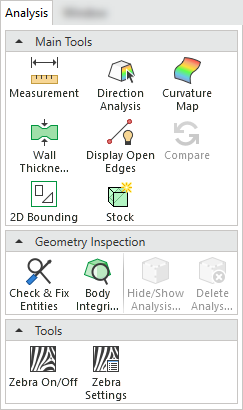
|
Menu Section |
|
Function |
Description |
|---|---|---|---|
|
Main Tools |
 |
Measure distance, angles, curvature and general data of objects and entities. |
|
|
Main Tools |
|
Analyze selected faces and visualize their draft angle with reference to a defined direction. |
|
|
Main Tools |
|
Map the different curvature radii of faces and then color the faces giving each range of radii a different color. |
|
|
Main Tools |
|
Analyze the wall thickness of objects. |
|
|
Main Tools |
|
Display Open Edges |
Control the visibility of open edges. Display or hide any open edges in entities. |
|
Main Tools |
|
Compare |
Compare and detect changes between the active part (original) and a selected (reference) part. These changes can then be edited and the model consequently updated. |
|
Main Tools |
|
Create a 2D (projected) Bounding Box contour around selected entities. Pick one or more 2D contours and the system finds the tightest square, circle, or enclosing polygon that completely surrounds the selected contour(s). |
|
|
Main Tools |
|
Obtain the overall size of a part or create a bounding box (stock) around it. |
|
|
Geometry Inspection |
|
Analyze the integrity of geometry, view the results and enable problematic entities to be fixed. |
|
|
Geometry Inspection |
|
Analyze various geometry quality issues of a selected B-rep object. |
|
|
Geometry Inspection |
|
Hide or show the analysis marks created by the last used analysis operation. The markings are areas indicated as problematic during the analysis. |
|
|
Geometry Inspection |
|
Delete selected analysis marks created by the last used analysis operation. The markings are areas indicated as problematic during the analysis. |
|
|
Tools |
|
Turn Zebra Shading On/Off. This function is useful for visual smoothness assessment. |


